

If you’re like most WordPress users then you’ve probably installed a security plugin to help keep your website safe. This is an excellent first step and will handle much of your protection – especially if you’ve enabled two-factor authentication.
But notice that I emphasized first step. I did that deliberately because many people think it’s the only step they need to take. If you truly care about your site’s security though, then it shouldn’t be.
The good news is that with some light manual configuration, you can enhance your WordPress security at the server level and make your site significantly more resistant to attacks. As an added bonus, you’ll feel like a WordPress security expert while doing it – arguably the most important part of the whole process. 😉
So if you’re ready to transform from a casual WordPress user to a pro and make your website bulletproof, then let’s get started.
Believe it or not, to pull this off, you’re only going to need three (possibly four) tools.
- Sucuri Site Check: Free tool to run your initial scan and to verify your changes.
- Security Headers: Another free tool that provides detailed feedback on website security configurations.
- Access to your hosting control panel: I’m using cPanel, but I’ll cover what to do if you have something else.
- A text editor (maybe): Your hosting control panel probably has one built in so this might not be needed, but I’m listing it here just in case.
The most complicated thing from the list above is going to be accessing cPanel. It’s not difficult, but every hosting company has their own way to do it and if you’ve never done it before then you need to figure it out.
The easiest way to approach it (if you’re unsure) is to go to your hosting company’s website knowledge base and search for “cPanel.” If that doesn’t get you anywhere then reach out to their customer support.
Running your initial security checks
Before you start tinkering with your site’s code, you first want to check how it currently handles security. The changes I’m going to show you are very specific so you want to ensure that they are in fact necessary for your site.
In most cases – especially if you rely on shared hosting – you are going to need to make them. However, on some higher-level managed WordPress hosting plans it’s possible that your host might make the tweaks on your behalf. Hence why running these scans beforehand is important.
Sucuri Site Check
To get started, head over to Sucuri’s Site Check tool and paste your website address into the scanner:
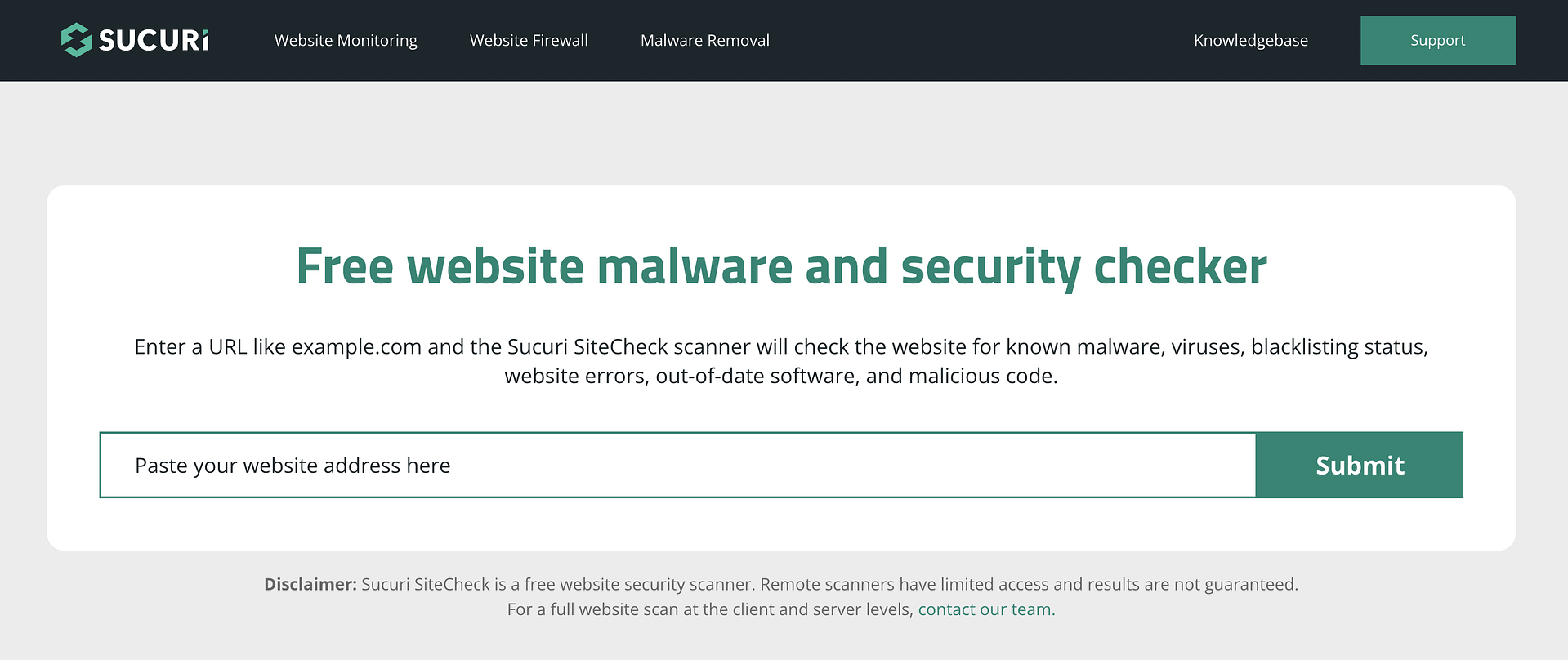
Click Submit and let Sucuri work its magic.
For the purposes of this tutorial, I intentionally unprotected my personal site to show you what the standard WordPress configuration looks like (before you make the edits):

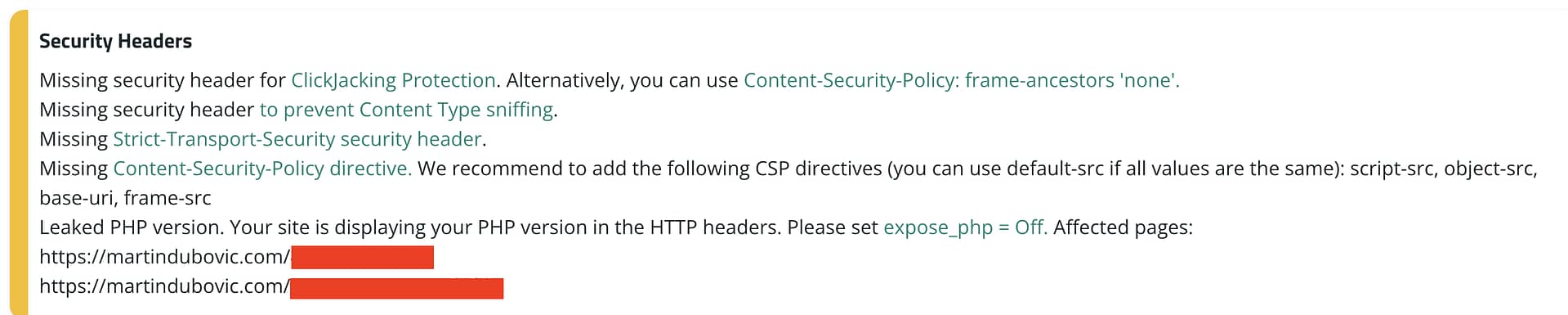
As you can see, the scan revealed five security gaps that you would see in any typical WordPress setup. I’ll explain what they mean in a moment.
While Sucuri gave us a good bird’s-eye view, let’s get really nerdy for a moment and check what Security Headers has to say. The first step is exactly the same as Sucuri – just type or paste your website’s address into the tool and click on Scan.
Depending on how large your site is, the results could take anywhere from a second to…well, longer. 😅 My initial result looked like this:

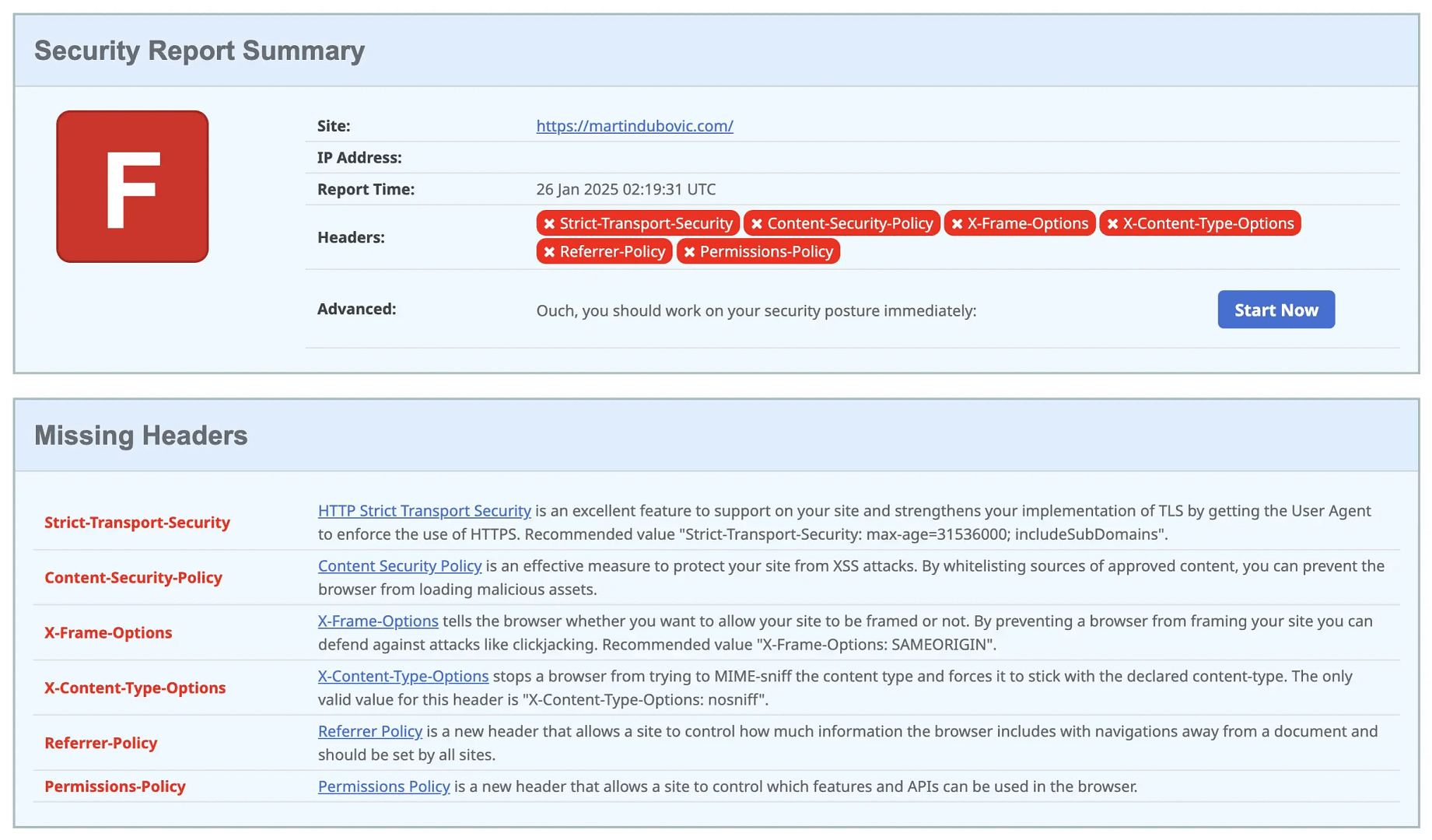
All the red colors and the giant F might look a bit intimidating, but it’s actually giving us some very useful information. Each of those red marks is pointing out a missing security header that makes your site more vulnerable.
I also want to reemphasize that you will see these results even with having Wordfence or some other security plugin installed on your site. The exception being if your hosting company or someone else makes the edits we’re going to make before you.
Understanding all the red flags
Now let’s organize everything our scans found – there’s some overlap between the tools, but each one caught some unique issues too.
Issues both tools caught 🤝
- Content-Security-Policy is missing entirely – meaning there’s nothing controlling what scripts and content can load on the site. ℹ️ Why is that bad?Without these controls, malicious code could be injected and run on your pages, potentially compromising your site and visitors.
- X-Frame-Options is missing, which leaves the site vulnerable to clickjacking attempts through unauthorized embedding. ℹ️ Why is that bad?Clickjacking is when attackers trick users into clicking something different from what they see, often by invisibly layering your legitimate site under malicious content.
- Content-Type-Options isn’t set, which could enable MIME-type confusion attacks. ℹ️ Why is that bad?MIME-type confusion occurs when a browser is tricked into treating one type of file as another, potentially executing harmful code.
Sucuri’s unique findings 🔍
- The PHP version is visible in HTTP headers. ℹ️ Why is that bad?When attackers can see your PHP version, they know exactly which vulnerabilities might work against your site – like having a blueprint of your security system.
- No Referrer Policy in place. ℹ️ Why is that bad?Without this policy, your site might leak sensitive information about your users’ browsing patterns to other websites.
- Permissions Policy hasn’t been configured. ℹ️ Why is that bad?This means any page on your site could potentially request access to visitors’ cameras, microphones, or location data without restrictions.
- Strict-Transport-Security is missing. ℹ️ Why is that bad?Without this header, connections to your site might downgrade from HTTPS to HTTP, making them vulnerable to interception.
The beauty of fixing these issues is that you don’t need to understand every technical detail – you just need to implement the solutions correctly. Which, conveniently, is exactly what we’re about to do.
Finding your way to the server files
Assuming you have cPanel like I do, click on File Manager in your dashboard:

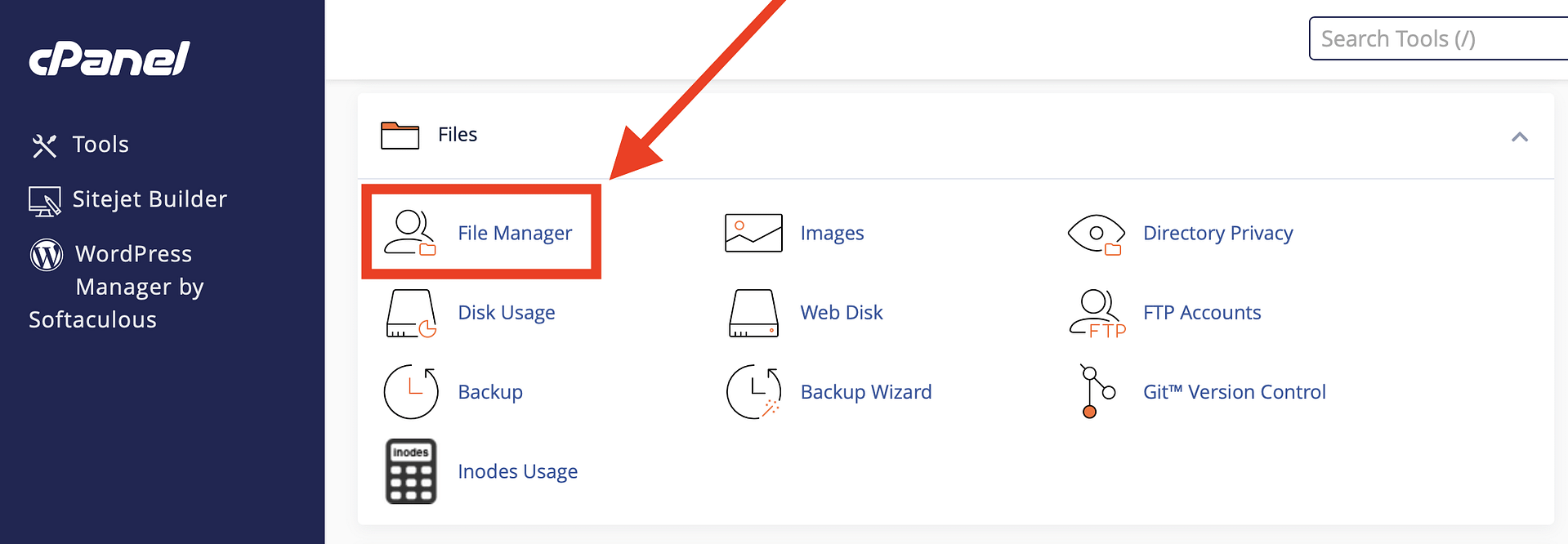
If you’re using something other than cPanel then you can download FileZilla (it’s free and here’s a quick guide on how to use it). After you install it, use your FTP details from your hosting dashboard to connect to your server:
- Host:
ftp.yoursite.com– double check if that’s the correct address in the FTP section of cPanel - Username:
your-username - Password:
your-password - Port:
21– also check if this is the port that your setup is using (FTP in cPanel)
Some hosts will also provide you with their own cPanel alternative which might function similarly. In other words, you might not absolutely have to use FileZilla. If you’re not sure, ask customer support.
Locating the .htaccess file
Once you’re logged in, you’ll see something that looks like your computer’s file browser. We need to find a specific file called .htaccess – it controls how your server handles various security settings. The easiest way to find it is to use the cPanel file manager search function on the top right. FileZilla users can rely on a similar feature.
Type .htaccess in the window and click Go.

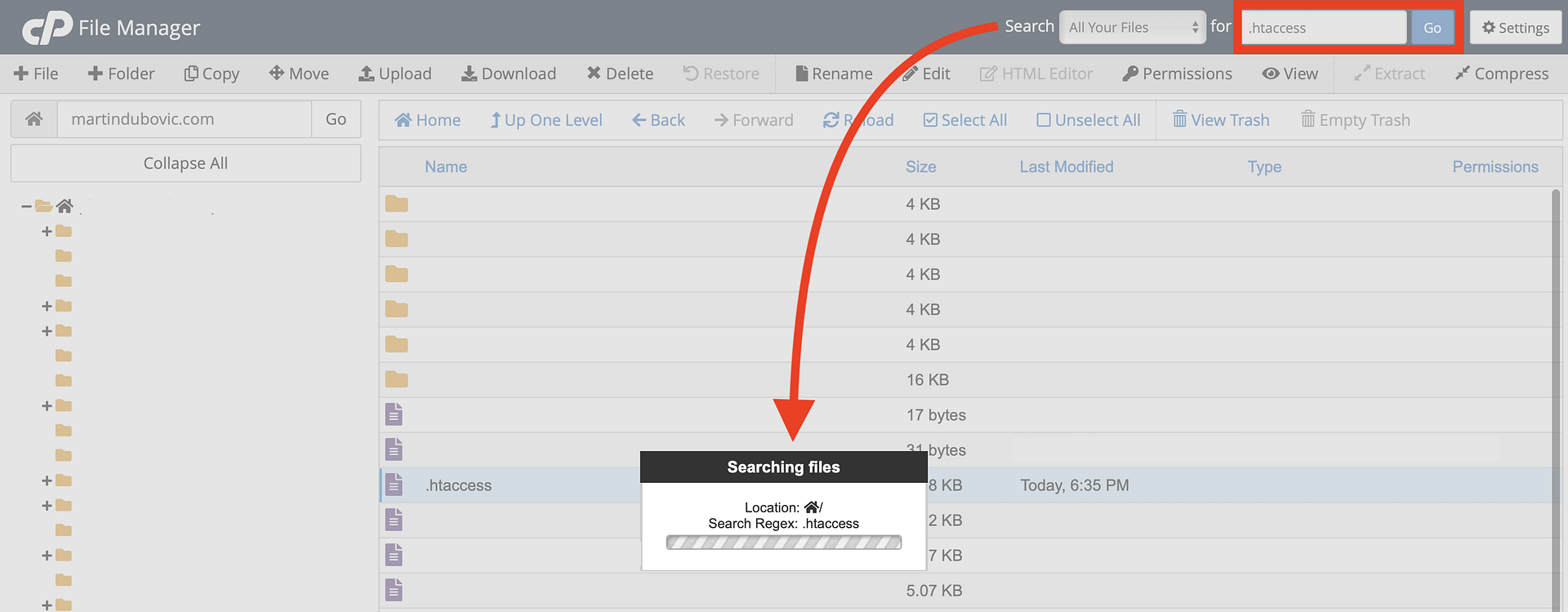
If you only have one website linked to your hosting account then this should be fairly straightforward. If you have multiple sites then be sure that you are clicking on the .htaccess file that is associated with the site you’re going to be making these edits to.
Another potential tripwire detail to watch out for is the fact that even on a single site setup, you’ll probably still have other .htaccess-ish files. Basically files that have .htaccess in their name but then also other words or characters.
You don’t want any of those. You only want the one that is called .htaccess and nothing else.
Adding code to the .htaccess file to fix the security issues
Once you locate the file, you’ll want to download it before you make any edits. This way if something goes wrong you have a backup that you can upload back into the folder.

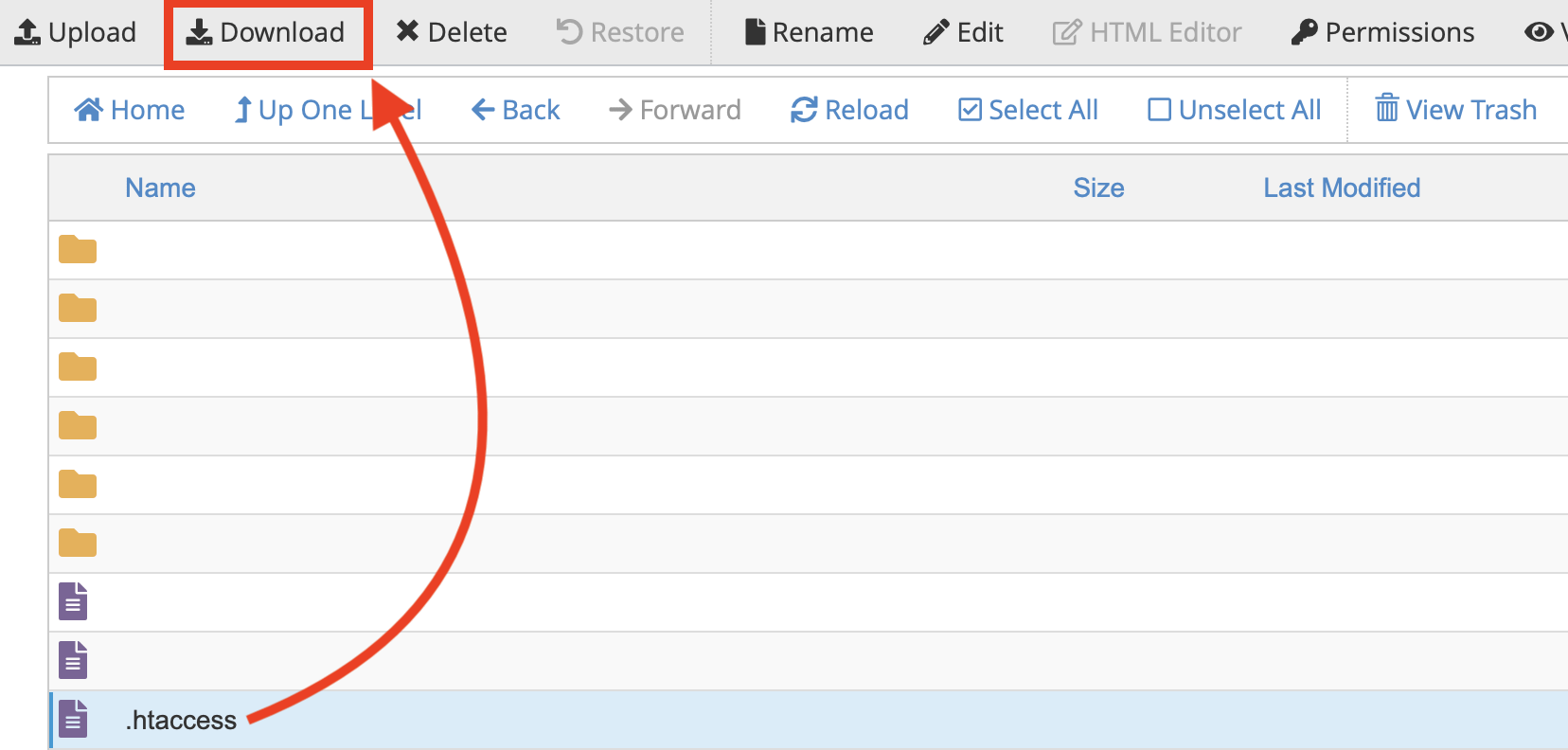
Nothing should go wrong, but better to be safe than you-know-what.
Once your backup is safely downloaded, you can proceed with editing the .htaccess file. In cPanel’s File Manager, right-click the file and select Edit. If you’re using FileZilla, right-click and choose View/Edit – this will open the file in your default text editor.
The next part is the apex of this entire mission. This is where you get to feel like a WordPress security expert for a brief moment. Enjoy it while it lasts.
Where to put the code in your .htaccess file 👨🏻💻
WordPress installations typically have several sections here, marked by comments that start with # BEGIN and # END.
Look for a line that says this:
# END WordPressThe safest approach is to add the security headers right after this. If you don’t see the exact line, or if you’re unsure, you can add the headers at the very end of the file – just make sure to leave a blank line between any existing code and the new additions.
Here’s the code:
# BEGIN Security Headers
Header unset X-Powered-By
php_flag expose_php Off
Header set X-Frame-Options "SAMEORIGIN"
Header set X-Content-Type-Options "nosniff"
Header set Strict-Transport-Security "max-age=31536000; includeSubDomains"
Header set Content-Security-Policy "default-src 'self' 'unsafe-inline' 'unsafe-eval' *; script-src 'self' 'unsafe-inline' 'unsafe-eval' * data: blob:; style-src 'self' 'unsafe-inline' *; img-src 'self' data: *; frame-src 'self' *; font-src 'self' data: *; media-src 'self' *;"
Header set Referrer-Policy "strict-origin-when-cross-origin"
Header set Permissions-Policy "camera=(), microphone=(), geolocation=(), payment=()"
# END Security Headers
After you’re done, click on Save Changes on the top right. For non-cPanel users, find whatever the equivalent button is on your own interface.
With that out of the way, you can run the security scans again to see the impact of your changes.
Re-running security checks
First, check Security Headers:

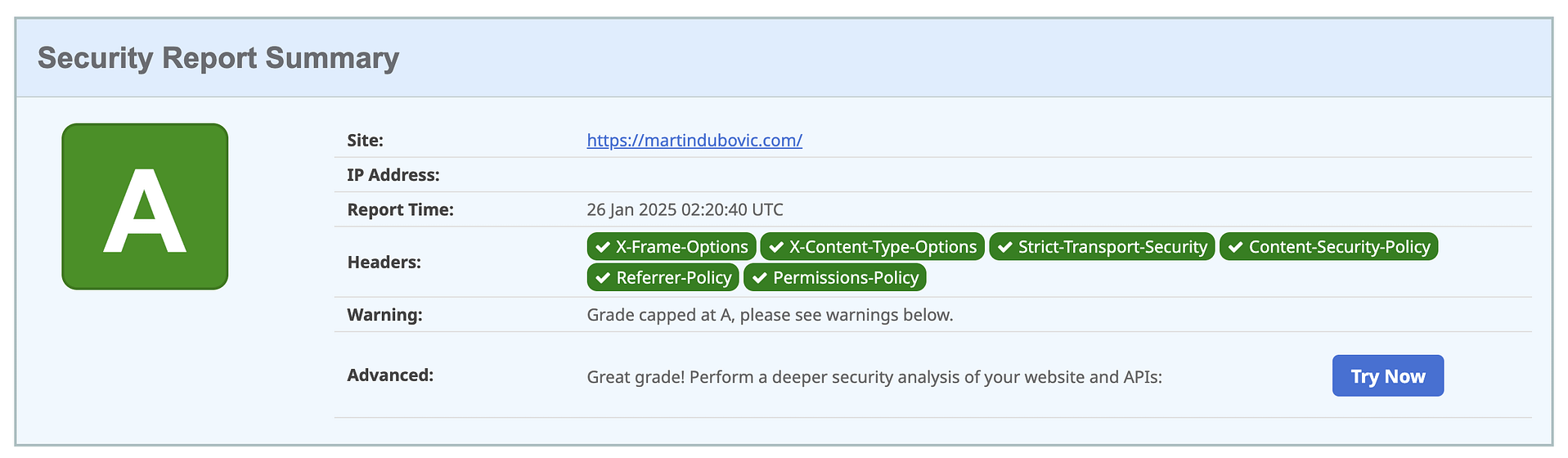
Not too bad, huh?
We went from an F to an A.
Talk about a glow-up!
Every security header we configured is showing as properly implemented.
Next, let’s check Sucuri:

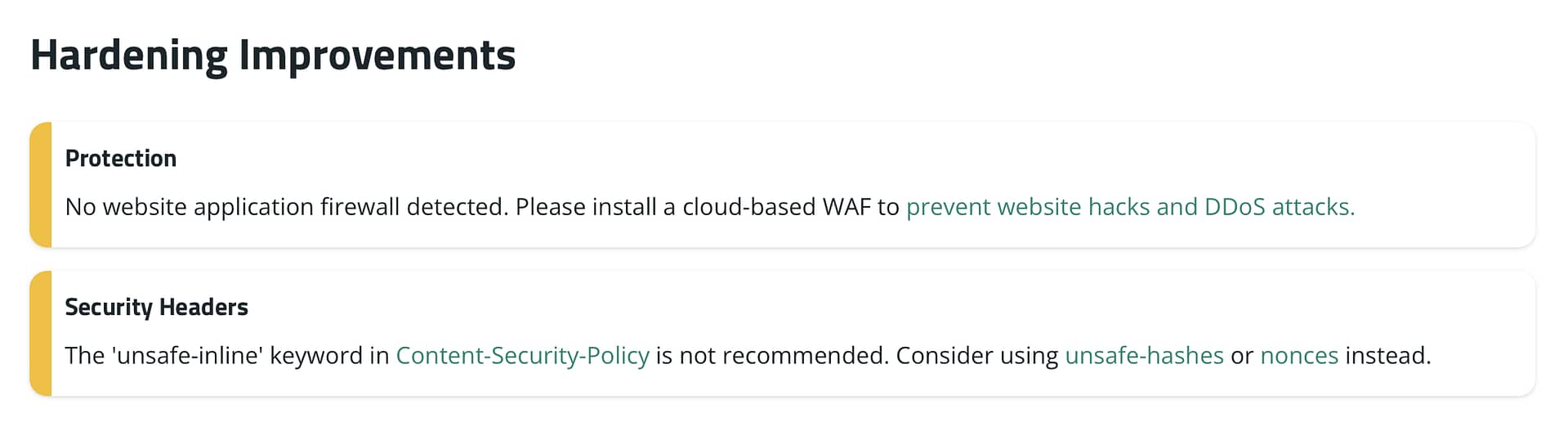
Much better but oddly there are still two warnings.
The first one is actually a false positive since I know that my site has Wordfence running. I don’t have any explanation for this other than perhaps Sucuri doesn’t recognize Wordfence for whatever reason. If you see the same warning and you also know that you have a WAF installed then just ignore it.
The second message is a little different though. It also shows up in the Security Headers result, below the stellar A grade report I showed you already:

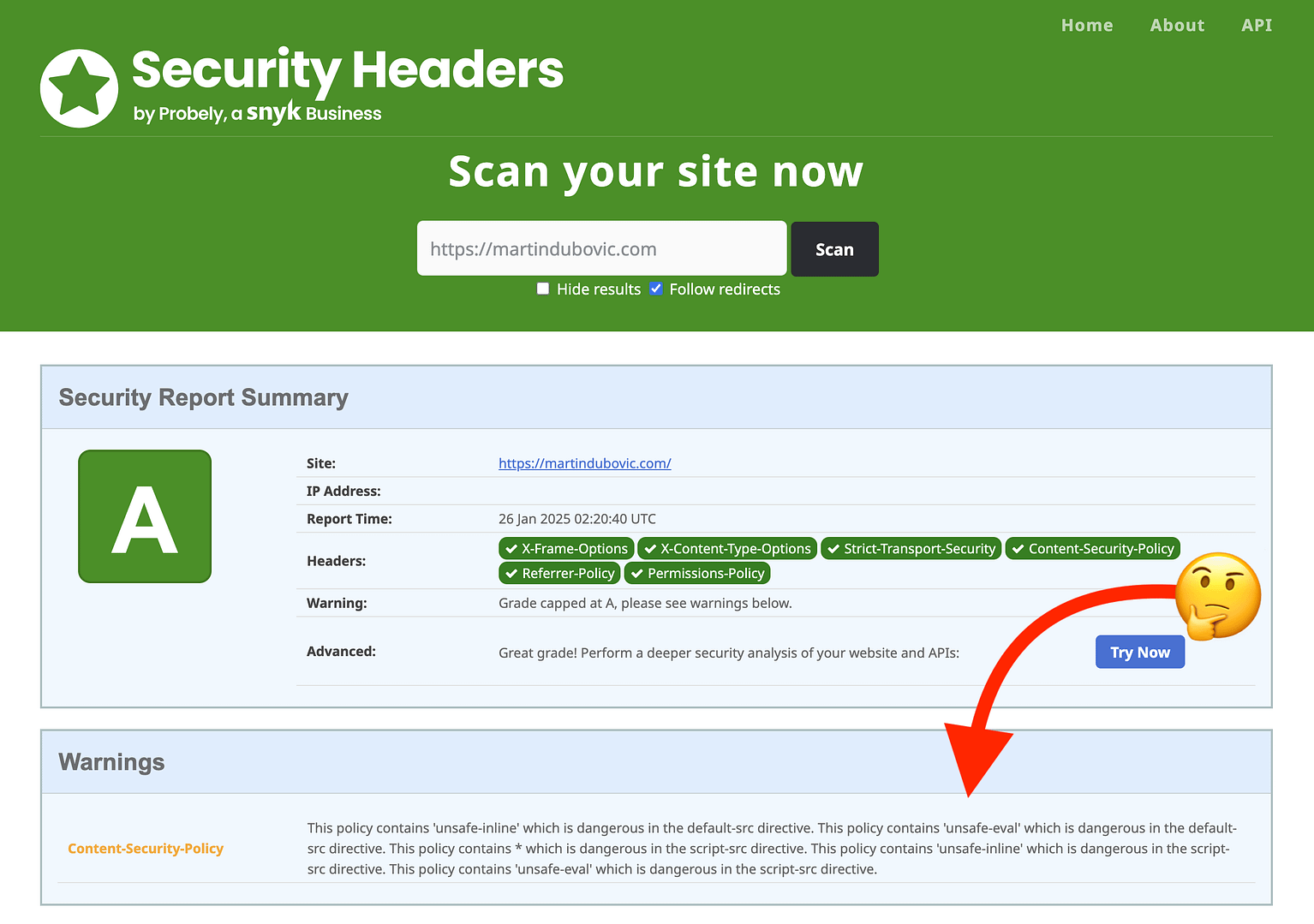
Here’s the thing:
Despite being flagged as “dangerous” by both tools, the use of unsafe-inline is actually perfectly okay.
WordPress needs certain JavaScript and CSS abilities to function – especially for the block editor and plugins. So while there are technically stricter ways to handle this (that’s what those nonces references are about), doing so would break your site. Literally.
The best analogy here is to think of a house. You could technically make your house “more secure” by sealing all your windows and doors with cement, but that would render your house non-functional. This is the same idea.
Wrapping up
WordPress security plugins are the foundation of a good security strategy – but they can’t reach down to the server level where certain critical protections need to be set.
The before and after screenshots from the security scans you saw are proof of this.
And now that you’ve read this tutorial, you too can take your WordPress security from “plugin protected” to “server-level secured.”
On a final note, as a security best practice, I also recommend doing the following:
- Run these security scans monthly.
- Keep documentation of your security configurations.
- Test after major WordPress updates to ensure everything’s still working as intended.
- Change your login page address.
- Limit login attempts.
- Activate two-factor authentication (or 2FA for short).
- Keep plugins and themes updated and delete ones that you don’t use.
…and lots more. WordPress security can take you down a deep rabbit hole, but what you learned here is sufficient to get you started and will protect your site from most attacks.
Do you have any questions? Let me know in the comments. I’d be happy to help you out.
Was this article helpful?
No
Thanks for your feedback!
Yay! 🎉 You made it to the end of the article!
Keep reading the article at Themeisle Blog. The article was originally written by Martin Dubovic on 2025-01-27 04:38:00.
The article was hand-picked and curated for you by the Editorial Team of WP Archives.